


Web Video Cast | Browser to TV
4.627.01K Reviews
App Specs
- Version
- 6.0.3
- Updated On
- License
- Free
- Downloads
- 50,000,000+
- Developer
- InstantBits Inc
- Categories
- Video Players & Editors
- Platform
- Android, iOS
Screenshots
 Analysis by AppCompare
I find the most useful way to judge Web Video Cast | Browser to TV is not by how many devices it mentions, but by whether it solves a particular living-room problem: a video is easy to find on a phone, yet awkward to watch on a larger screen. Web Video Cast is built around that gap. It is a free video-player and casting app from InstantBits Inc, and its approach is to browse for online video on the phone, then send playback to a compatible screen. That can be more convenient than hunting for the same clip in a TV app, though it does add a few connection and playback checks of its own.
Where casting can get frustrating
The first snag is often not the video but the route between devices. Casting depends on the phone and receiver being able to find each other, so a TV that is on but not visible in the app can make the whole process feel less straightforward than tapping a cast button inside a familiar streaming service. I would start by checking that both devices are connected to the same Wi-Fi network and that the TV receiver is awake and ready. Those simple checks are more useful than repeatedly tapping the same discovery control.
The next distinction is between a page and a playable video. A web page may show a clip, an embedded player, captions, and other elements together; the receiver needs a video stream it can handle. If a particular page does not cast cleanly, that does not necessarily mean the phone or TV connection is broken. I would try another video on the same page, or a different source, before treating the problem as a general failure. This is one reason I see the app as a flexible browser-to-screen tool rather than a guarantee that every item on the web will play on every receiver.
Setup checks that save time
Before settling in, I would make one short test run: open the app, choose the receiver that appears, and play a brief clip. That confirms the connection while there is still time to correct it. If no receiver appears, check the Wi-Fi connection on both devices first, then make sure the receiving device is switched on and available for casting. A guest network or a router setup that separates devices can also prevent discovery, even when the phone itself has internet access.
It also helps to distinguish phone browsing from TV playback. The phone is used to find and control the video, while the receiver handles the larger-screen playback. If the video starts on the phone but not the TV, I would check the selected receiver and try reconnecting before changing several settings at once. If it plays on the TV but looks unstable, I would test a different clip and consider whether the network is busy. Changing one thing at a time makes it much easier to identify the actual source of trouble.
Recovering a stalled viewing session
When a cast stops partway through, I would avoid assuming that the whole setup needs to be rebuilt. First check whether the video is still playing on the receiving screen, then whether the phone still shows the right receiver and playback controls. If the connection has dropped, reconnect and reopen the video. If only one video refuses to resume, returning to its page and selecting it again is a sensible next step. These small recovery steps are less disruptive than restarting the router or reinstalling the app every time playback falters.
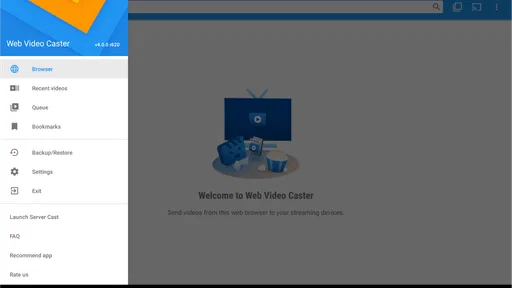
For a planned watch session, the queue and bookmarks can help reduce interruptions, but I would treat them as conveniences rather than a substitute for checking each source. A bookmark gets you back to a site; it does not guarantee that a particular video will still be available or behave the same way. Likewise, a queued list is useful when clips play reliably, but I would test the first item before walking away. That is especially practical if you are setting up videos for children or putting on a sequence of tutorials while doing something else.
Worth Reading Before You Choose

Flipboard Shows What News Apps Must Do Beyond the Feed

Switching to Android Auto Means Rethinking Your Driving Routine

Google Calendar Makes a Crowded Week Easier to Manage

Ludo King Makes the Most of the Minutes Between Plans

Baby Panda World Brings Quick Play to Modern Phones, but Its Game Library Feels Busy

ESPN’s Live Game View Makes Following Close Games Easier
When the app may not be the cause
Playback problems can come from the connection, the receiving device, or the video source, not just the casting app. If one clip fails while another works on the same TV, I would suspect the source or the way that page serves its video before blaming the whole setup. If every clip is unreliable, the shared Wi-Fi connection and receiver are better places to start. This simple comparison—same receiver, different video, then same video with a fresh connection—can narrow down the cause without guesswork.
There is also a practical limit to browser-based casting: some people want a single official TV app with a predictable catalogue and controls, not a way to send assorted web video from a phone. In that case, using the TV's own streaming apps is usually the simpler choice. Web Video Cast makes more sense when the content you want is already in a browser and the TV does not offer an equally convenient route to it.
Who will get the most from it
I would recommend it to someone who regularly finds videos on websites and wants to watch them on a Chromecast, Roku, DLNA receiver, Fire TV, or another compatible device. It is also a handy option for a shared household: one person can find a tutorial, a public video, or a live stream on the phone and send it to the room without asking everyone to crowd around a small screen. For a one-off clip, the built-in browser can save the extra step of finding and opening a separate app, while bookmarks are useful for sites you revisit.
It is less compelling if nearly everything you watch already lives in subscription services with polished TV apps, or if you dislike using a phone to browse and manage playback. A direct app on the TV tends to be more dependable for regular viewing because it avoids the extra handoff from browser to receiver. I would also think twice if you need every web video to work without troubleshooting; the variety of sites and receivers is exactly what makes this kind of tool handy, but it also means playback can vary from one source to another.
Everyday use and a few useful trade-offs
A realistic example is finding a repair tutorial while making dinner. I can search for the video on the phone, cast it to the living-room screen, and keep the phone available to pause or move through the instructions. For this sort of use, a queue is more than a novelty: I can line up the next clip while the current one plays instead of interrupting the task later. The trade-off is that I still need to confirm the next item starts correctly; a list of videos does not remove the possibility that a particular page or stream behaves differently.
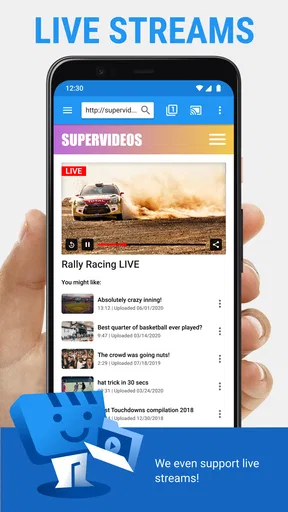
For live streams, I would make the connection before the event begins rather than waiting until the moment I want to watch. A short test gives time to select the right receiver and check that playback begins. If a live stream is central to the occasion and missing the start would be frustrating, the broadcaster's own TV app or another direct viewing option may be the safer choice. I see browser casting as convenient, not as a promise that every source will behave like a dedicated live-TV service.
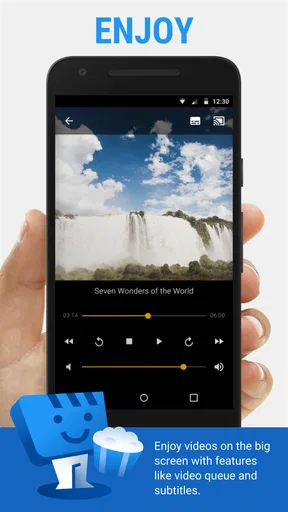
Subtitles are another reason to test the actual video you plan to watch. The app supports subtitles, which is useful for foreign-language films or for following dialogue in a noisy room, but the source and playback path still matter. I would check that captions appear before settling in, especially if they are essential to understanding the video. This small check avoids confusing a missing subtitle track with a general casting problem.
How it compares with familiar alternatives
Compared with casting from an individual video service, this app is appealing when the material is scattered across websites or is easiest to locate in a browser. A service's own app usually has the advantage of a purpose-built catalogue and a more direct route to its playback controls. The browser-based approach offers a different kind of flexibility: find the content first, then try sending it to the screen. Neither is automatically better. For a show you watch every week, I would use its TV app; for a useful web clip that has no convenient TV destination, this app has a clearer role.
Compared with connecting a laptop to a TV, phone casting can mean less equipment and a simpler handoff for casual viewing. But a physical connection can be more predictable when you need to show a particular page or video and do not want to rely on receiver discovery. I would choose based on the occasion: quick, informal viewing favors the phone; a presentation or a session where reliability matters more than convenience may favor a direct connection.
Seamless Streaming Experience
The first thing that struck me about Web Video Cast | Browser to TV is its ease of use. I mean, who wants to spend hours trying to connect devices? With this app, you can cast videos from your phone browser straight to your TV in a few easy steps. The app supports a wide range of formats, which means you can stream almost anything you can find online.
Setting Up
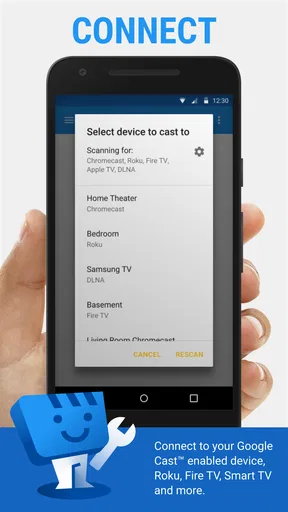
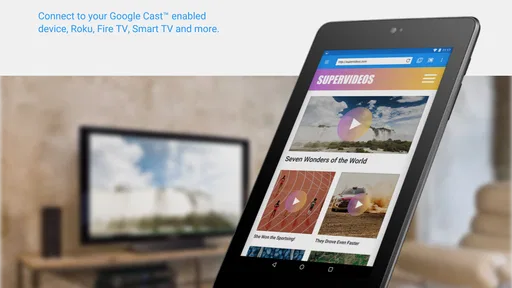
Getting started is a breeze. You just need to download the app, connect your phone and TV to the same Wi-Fi network, and voilà! You're ready to stream. The app is compatible with a variety of TV devices like Chromecast, Roku, and DLNA receivers, so chances are, your setup will work just fine.
User Interface
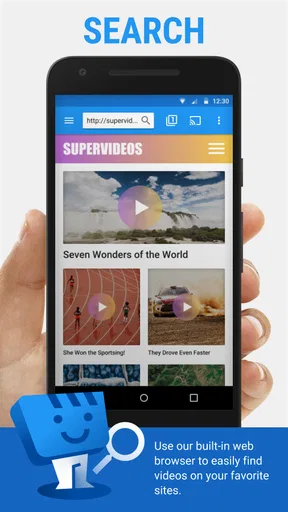
The interface is intuitive and user-friendly. It doesn't overwhelm you with options, which is great if you just want to get straight to the point. There's a built-in browser that lets you search for videos directly within the app. I found this feature particularly handy because it eliminates the need to switch between apps when you find something you want to watch.
Performance
Now, let’s talk about performance. The streaming quality is generally solid, and I didn’t experience much lag, which is always a relief. However, keep in mind that the quality can depend on your internet connection. During my tests, everything ran smoothly, and the video quality was pretty impressive.
Additional Features
One cool thing about this app is its support for subtitles. If you're watching foreign films or just like having subtitles, this feature will be a big plus. You can also add bookmarks for your favorite sites, making it easy to return to them later.
Another handy feature is the ability to queue videos. You can line up several videos to watch without having to start each one manually. It’s perfect for those lazy evenings when all you want to do is hit play and relax.
What to expect before installing
The app has been available since March 7, 2014, and version 5.12.7 requires Android 5.0 or later. Its Everyone age rating makes it suitable for a broad audience, while its 4.6 average from around 2.3 million ratings and more than 50 million installs show that it has reached a large group of users. Those numbers are reassuring as signs of established use, but I would still judge it by your own receiver and the particular sites you watch.
There is no charge to install it, though in-app purchases range from $1.49 to $7.49 per item. I would treat the free app as the way to try the core workflow first, then decide whether anything beyond that matters to your routine. If all you need is occasional browser-to-TV playback, there is little reason to make a purchase decision before testing whether your devices connect and your usual videos play.
For Android users, the stated minimum operating-system requirement is worth checking before downloading, especially on an older spare phone you plan to use as a remote. The app is a helper for finding and sending video, not a replacement for every streaming service or a guarantee that all web pages will cast identically. Setting that expectation early makes the app easier to assess fairly.
A practical verdict for the living room
What I like most is the specific problem it addresses: moving a web video from a phone screen to a TV without first needing to locate the same content in a dedicated television app. Its browser, bookmarks, subtitles, and queue support give the workflow useful flexibility for tutorials, clips, and other web viewing. The catch is that this flexibility brings more variables than a direct service app, so source compatibility and the home network still matter.
If you often browse for video and already own a compatible receiver, I think it is worth trying. Make one brief test with a familiar clip, confirm subtitles if you need them, and check that a queued item behaves as expected before relying on it for a longer session. If your viewing is mostly from established streaming services, or you want a no-fuss remote-free experience, the TV's own apps are likely the better fit.
In a world where convenience is king, Web Video Cast | Browser to TV delivers a straightforward solution for video streaming. It's a must-have for anyone looking to enhance their streaming experience. Whether you're watching tutorials, movies, or live sports, this app has you covered. Just make sure your internet connection is reliable, and you're all set for a smooth, enjoyable experience. So, what are you waiting for? Give it a try and see how it transforms your viewing habits!
Pros
- Seamless TV casting experience
- Supports multiple video formats
- User-friendly interface
- Quick setup and installation
- Compatible with numerous devices
Cons
- Ads can be intrusive
- In-app purchases required for full features
- Occasional connection drops
- Limited free version capabilities
- May require additional plugins
FAQs for Web Video Cast | Browser to TV
What devices are compatible with Web Video Cast?
Web Video Cast is compatible with a wide range of devices, including Chromecast, Roku, DLNA receivers, Amazon Fire TV, and more. It supports most smart TVs that have a web browser or support casting. Ensure your device is connected to the same Wi-Fi network as your phone for seamless casting.
Does Web Video Cast support all video formats?
Web Video Cast supports a variety of video formats, including MP4, MKV, and AVI. However, compatibility may vary depending on the device you are casting to. Some formats may require additional codecs or apps on your target device. Always check the specifications of your casting device for supported formats.
Is there a cost associated with using Web Video Cast?
Web Video Cast offers a free version with essential features. However, there is also a premium version available for purchase that removes ads and offers additional features like bookmarking and video history. The premium version enhances the user experience by providing a more seamless and ad-free environment.
How do I troubleshoot casting issues with Web Video Cast?
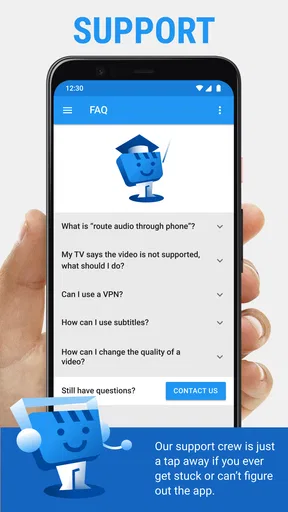
If you experience casting issues, ensure both your phone and the casting device are on the same Wi-Fi network. Restart both devices and try clearing the cache of the app. If problems persist, check the app’s support page or contact customer service for further assistance. Ensuring the app and device firmware are updated can also resolve many issues.
Can I cast videos from websites with subscription content?
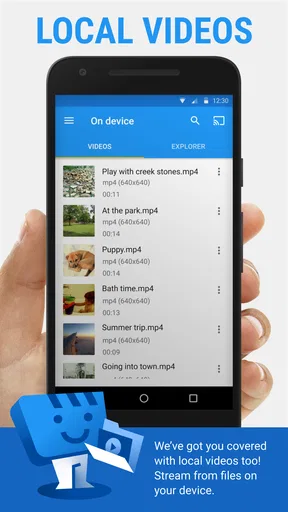
Web Video Cast does not support casting subscription-based content from websites like Netflix or Hulu due to DRM restrictions. The app is designed to cast free web videos, live streams, and local media files. For subscription content, it’s best to use the dedicated apps provided by those services, which are optimized for casting.


